Creating a professional and visually appealing business card is crucial for making a lasting first impression. While there are many online tools available, using Adobe Photoshop offers unparalleled customization and control over the design. Photoshop allows you to create a business card template that perfectly reflects your brand identity and stands out from the competition. This post will guide you through the process of creating a business card template in Photoshop, covering essential considerations and providing a step-by-step approach.
Why Choose Photoshop for Business Card Design?
Before diving into the creation process, let’s understand why Photoshop is a preferred choice for many designers:
- Ultimate Customization: Photoshop provides granular control over every aspect of the design, from typography and color palettes to image manipulation and special effects.
- High-Quality Output: Photoshop is designed for professional graphic design and ensures high-resolution, print-ready files.
- Integration with Other Adobe Products: Seamlessly integrates with other Adobe Creative Cloud applications like Illustrator and InDesign, allowing for complex designs and workflows.
- Vast Resources: A massive community and an abundance of tutorials, plugins, and stock images are readily available.
- Non-Destructive Editing: Photoshop’s layer-based system allows you to experiment with different design elements without permanently altering the original image.
Creating a Business Card Template in Photoshop: A Step-by-Step Guide
1. Setting Up the Document
- Create a New Document: Open Photoshop and go to File > New.
- Define Dimensions: Standard business card size is 3.5 inches by 2 inches (88.9 mm x 50.8 mm). Set the width to 3.5 inches and the height to 2 inches.
- Resolution: Set the resolution to 300 DPI (dots per inch) for high-quality printing.
- Color Mode: Choose CMYK color mode, as this is the standard for printing.
- Bleed Area: Add a bleed area of 0.125 inches (approximately 3mm) on all sides. This ensures that the design extends beyond the cut lines, preventing white edges when the card is trimmed. You can typically set bleed settings when creating a new document, or add guide lines manually.
- Name the Document: Give your document a descriptive name like “BusinessCardTemplate_Front” and “BusinessCardTemplate_Back”.
2. Designing the Layout
- Establish Safe Zone: Create guides to define the safe zone. This is an area within the card where important text and logos should reside to avoid being cut off during printing. Typically, set guides around 0.125 inches (approximately 3mm) inside the trim line.
- Background: Choose a background color or image. You can use the Paint Bucket tool for solid colors or import an image from File > Place Embedded. Remember to extend the background to the bleed area.
- Logo Placement: Position your logo prominently. Consider the visual hierarchy and place it where it will be most noticeable. Use Smart Objects for logos so you can easily replace it later without losing quality.
- Text Placement: Add text for essential information: your name, job title, company name, contact information (phone number, email, website), and social media handles. Use the Type tool (T) and choose appropriate fonts.
- Font Choice: Select legible and professional fonts. Use a maximum of two font families to maintain consistency. Consider readability and font size. Generally, avoid fonts smaller than 8pt for body text.
- Color Palette: Use a consistent color palette that aligns with your brand. Use the Eyedropper tool (I) to sample colors from your logo and apply them to other elements.
3. Adding Visual Elements
- Images and Graphics: Incorporate relevant images or graphics to enhance the design. Ensure they are high-resolution and visually appealing.
- Shapes and Lines: Use shapes and lines to create visual interest and structure the design. The Rectangle Tool (U), Ellipse Tool (U), and Line Tool (U) can be used.
- Effects and Styles: Use layer styles like drop shadows, gradients, and strokes sparingly to add depth and dimension. Avoid overusing effects, as they can make the design look cluttered.
- QR Code: Consider adding a QR code that links to your website or digital business card.
4. Saving and Exporting
- Save as PSD: Save your template as a PSD (Photoshop Document) file. This preserves all layers and allows for future editing.
- Create a High-Resolution PDF for Printing: Go to File > Save As and choose PDF as the file format. In the PDF settings, select “Press Quality” or a similar preset to ensure high-resolution output. Also, make sure that the “Bleed” settings are correctly configured to include the bleed area you defined earlier.
5. Considerations for Back of the Card
Many business cards utilize the back side. You can create a separate Photoshop document for the back, or incorporate it into the same document on a different artboard.
- Reinforce Branding: Use the back to reinforce your branding. You might feature a larger version of your logo, a tagline, or a compelling image.
- Call to Action: Consider adding a call to action, such as “Visit Our Website” or “Follow Us on Social Media.”
- Additional Information: If space is limited on the front, you can include additional information on the back, such as a list of services or products.
- Keep it Clean: Avoid overcrowding the back of the card. A clean and simple design is often more effective.
By following these steps, you can create a professional and effective business card template in Photoshop that accurately represents your brand and makes a memorable impression. Remember to always proofread your content and test print a sample before printing a large quantity of cards.
If you are looking for Create Business Card Template Photoshop – Mightyprintingdeals.com you’ve came to the right place. We have 22 Images about Create Business Card Template Photoshop – Mightyprintingdeals.com like CREATIVE PHOTOSHOP BUSINESS CARD TEMPLATE | MasterBundles, Create Business Card Template Photoshop and also Create Business Card Template Photoshop – Mightyprintingdeals.com. Here it is:
Create Business Card Template Photoshop – Mightyprintingdeals.com
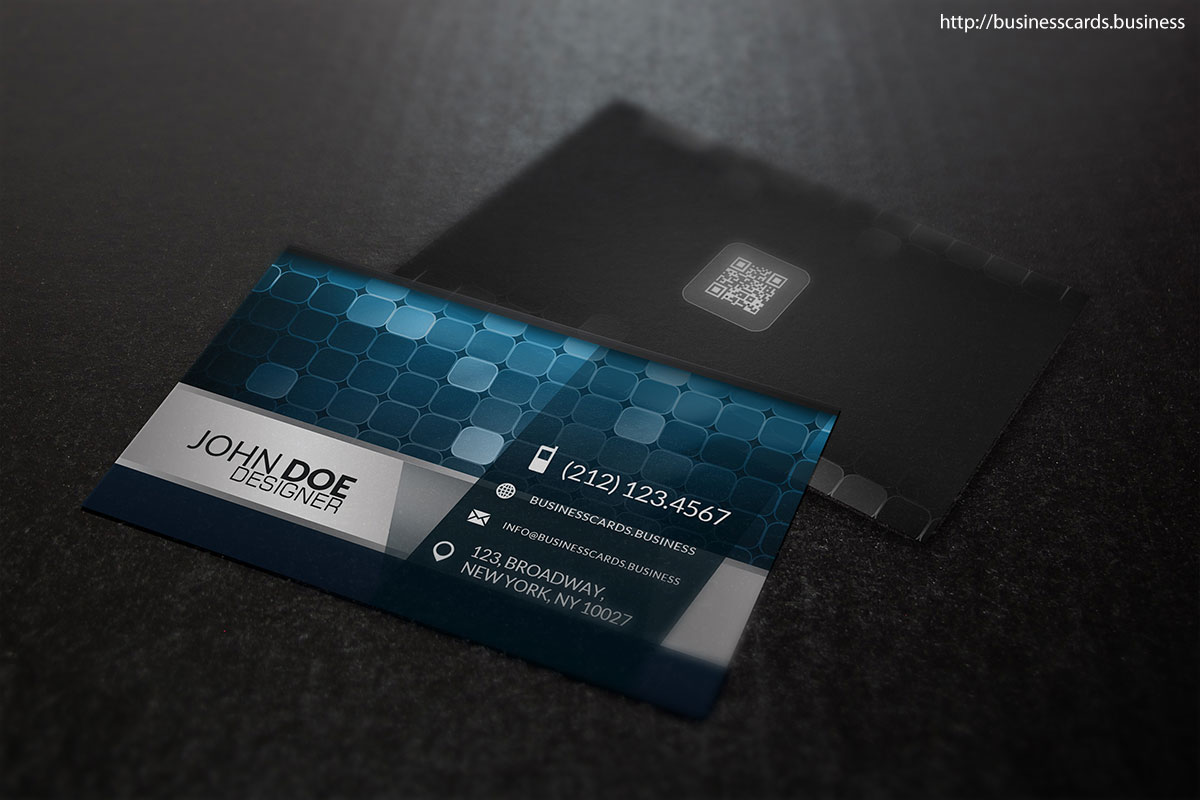
www.mightyprintingdeals.com
Create Business Card Template Photoshop
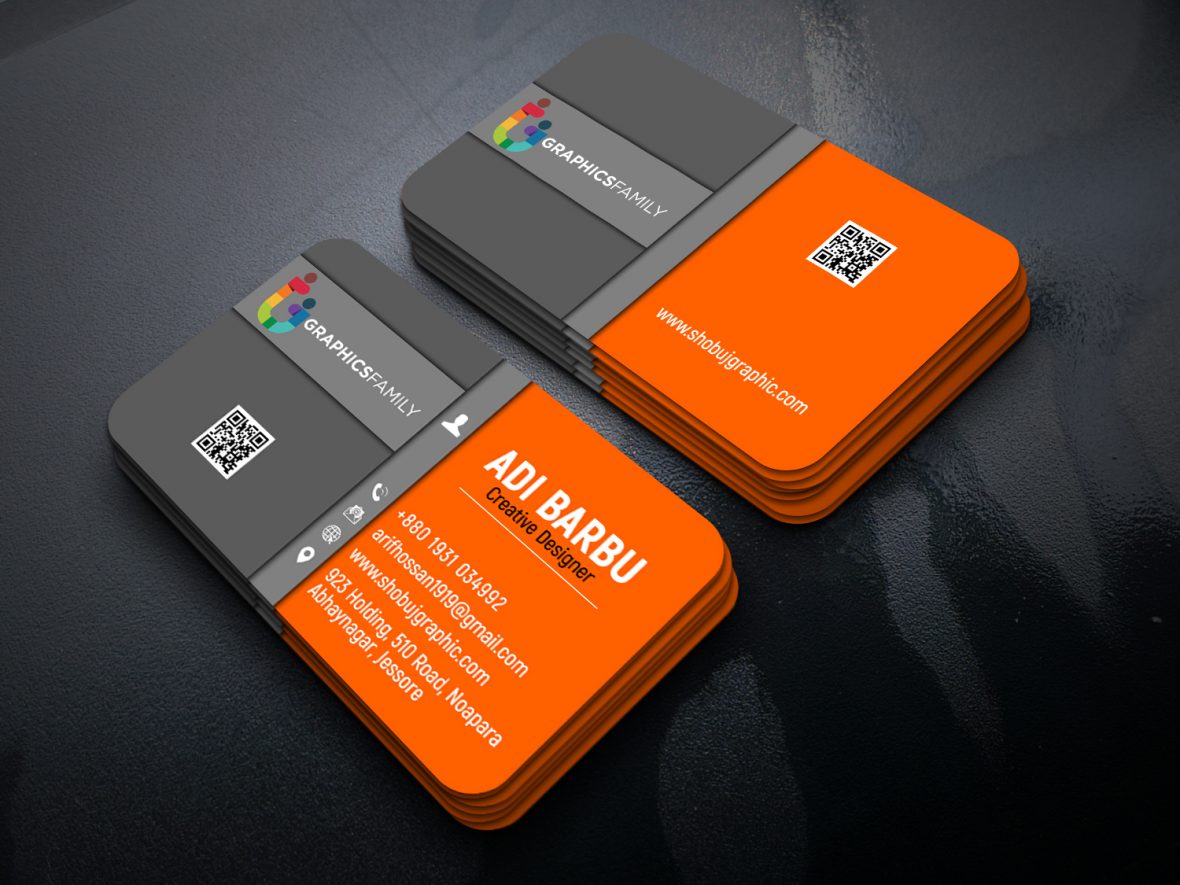
www.animalia-life.club
Business Card Template For Photoshop
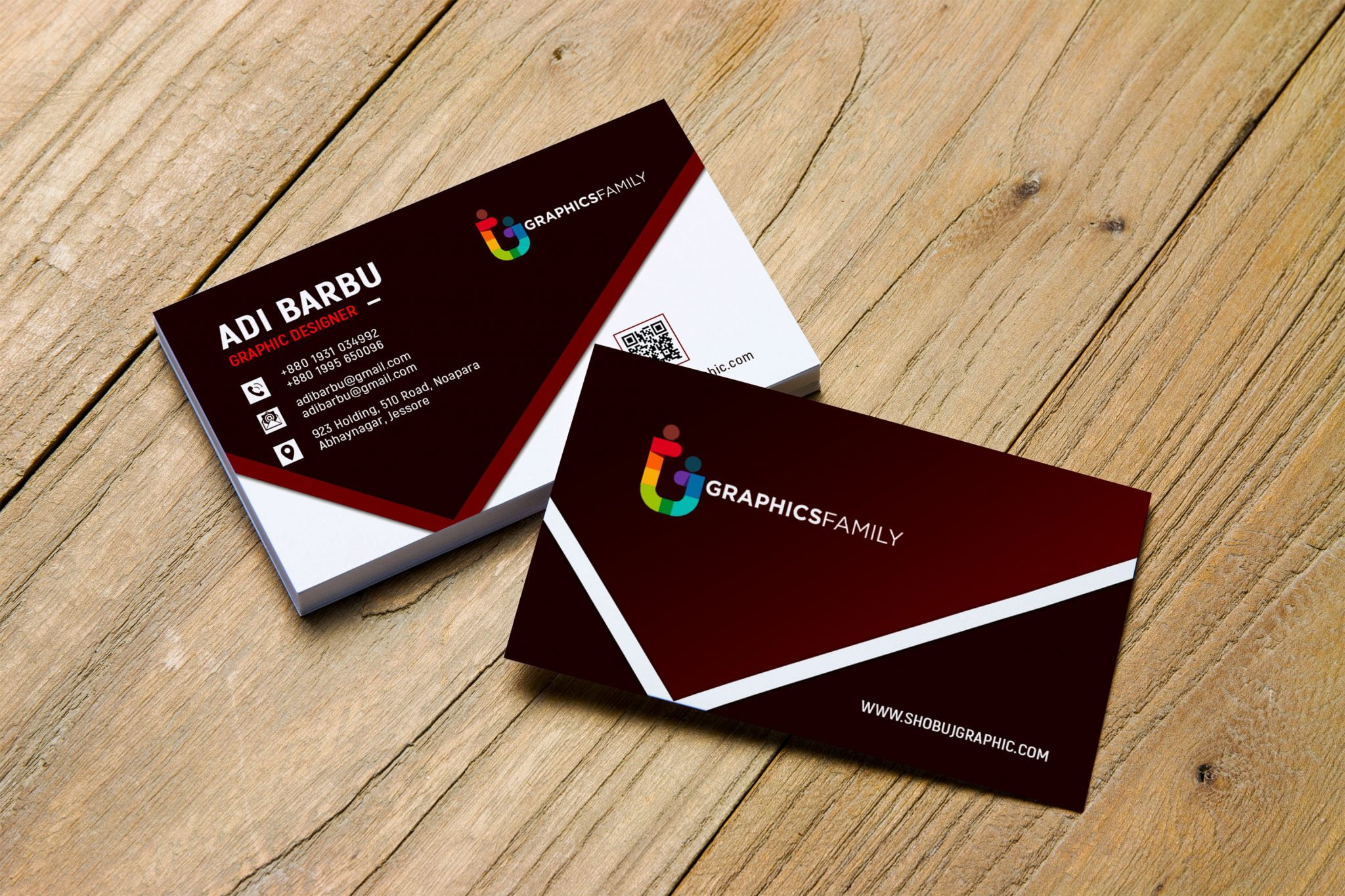
old.sermitsiaq.ag
Photoshop Cs6 Business Card Template
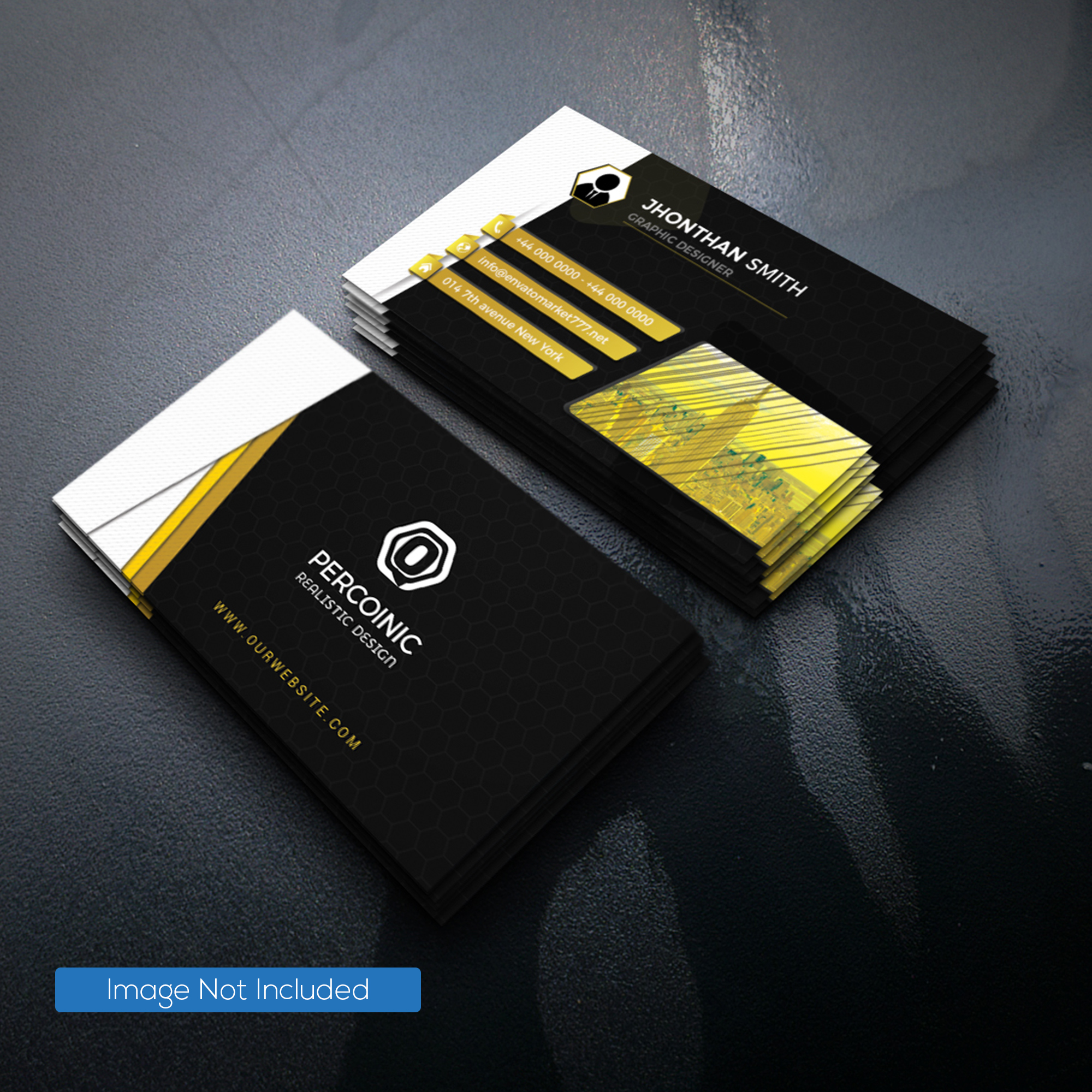
ar.inspiredpencil.com
Create Business Card Template Photoshop – Mightyprintingdeals.com

www.mightyprintingdeals.com
Create Business Card Template Photoshop
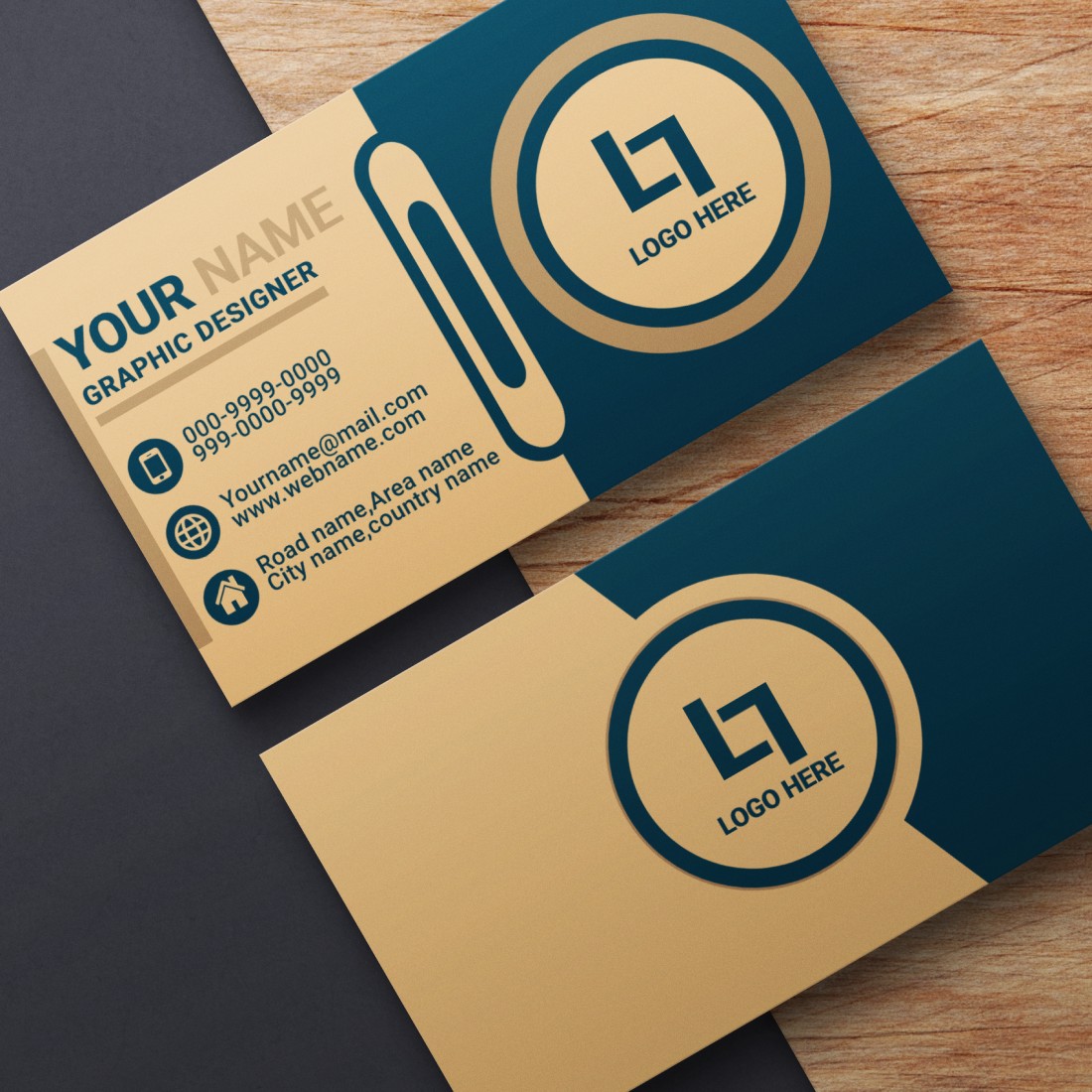
www.animalia-life.club
Create Business Card Template Photoshop
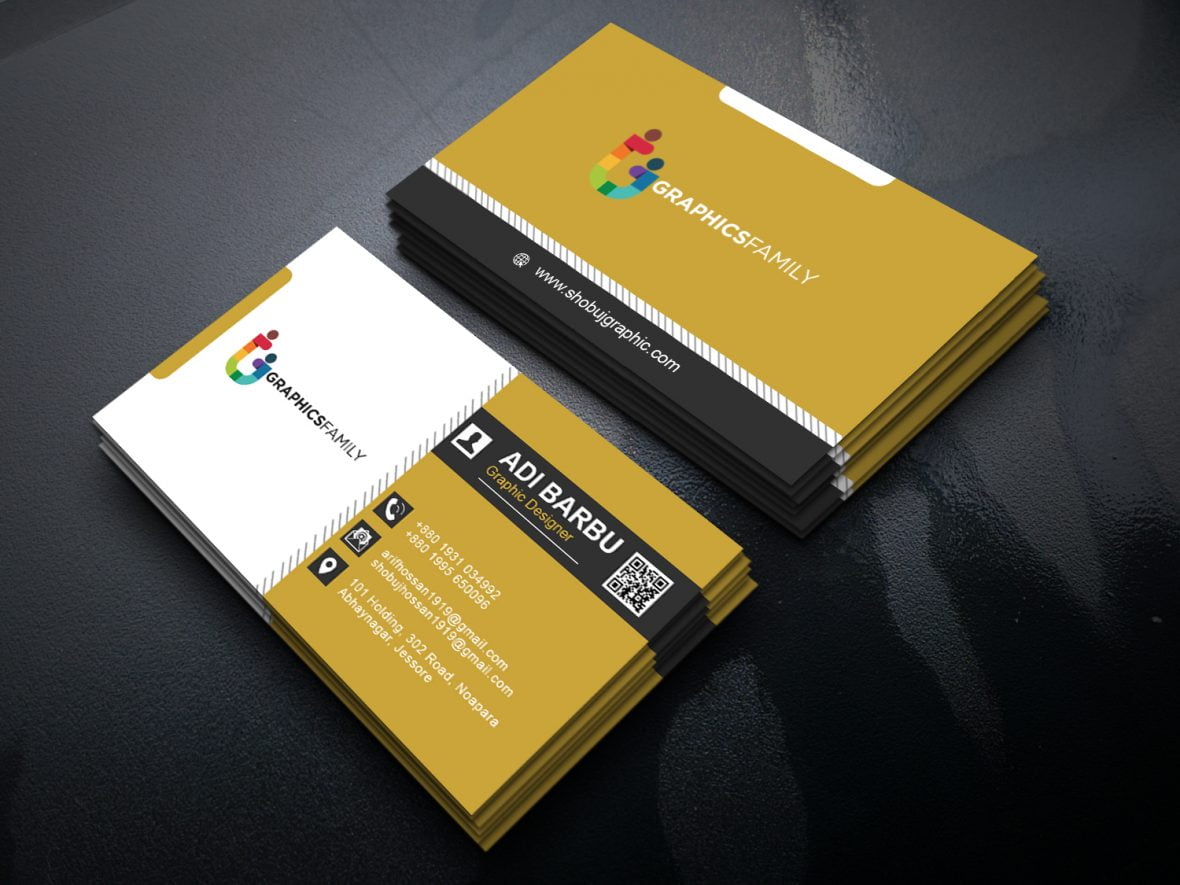
www.animalia-life.club
Create Business Card Template Photoshop
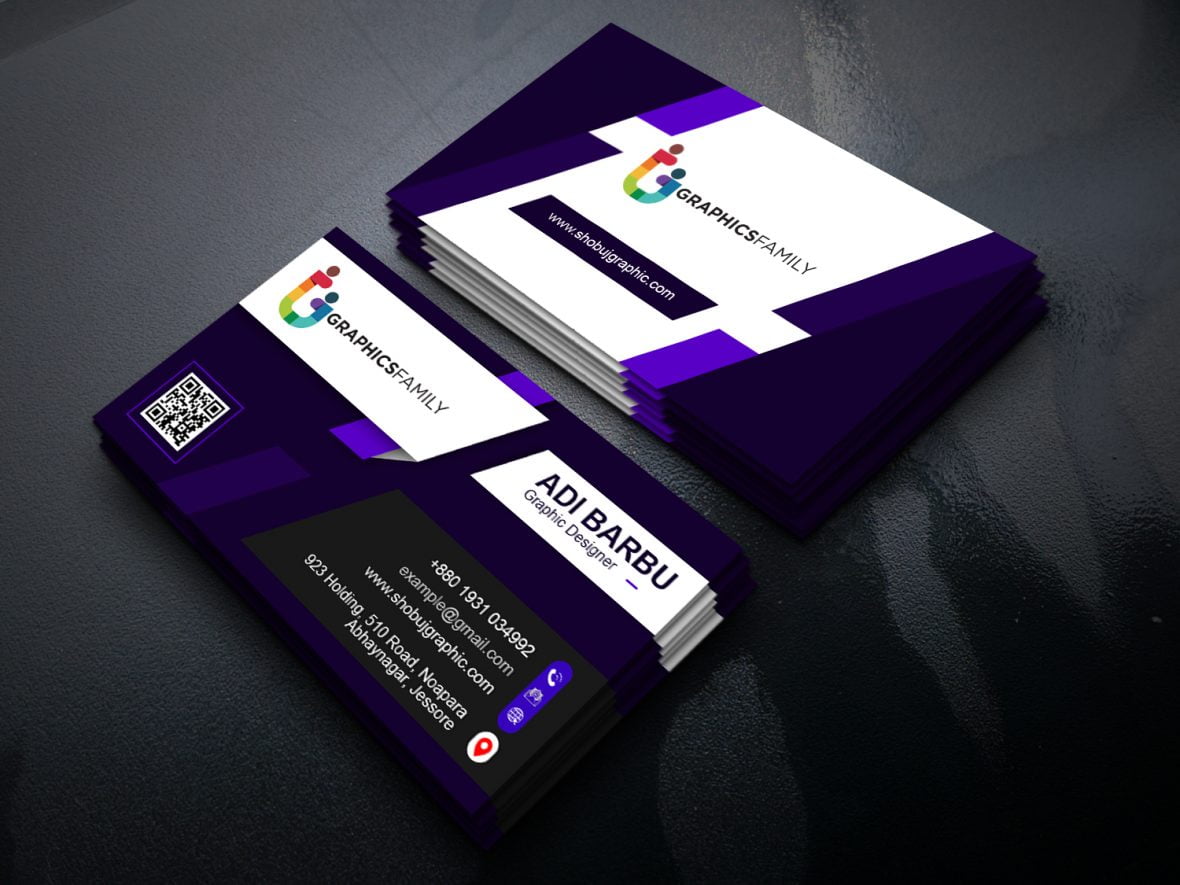
www.animalia-life.club
Create Business Card Template Photoshop – PARAHYENA
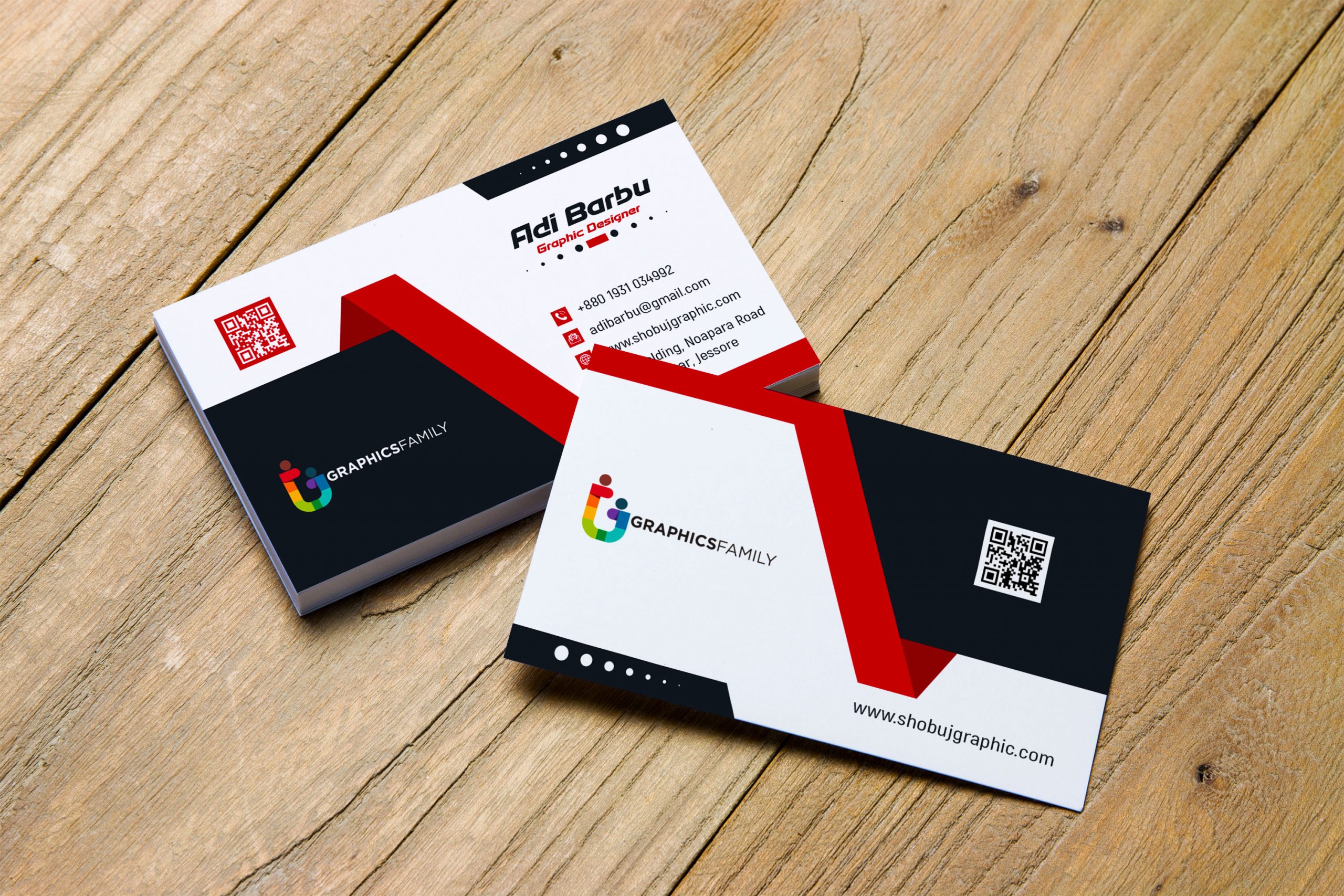
www.parahyena.com
Create Business Card Template Photoshop
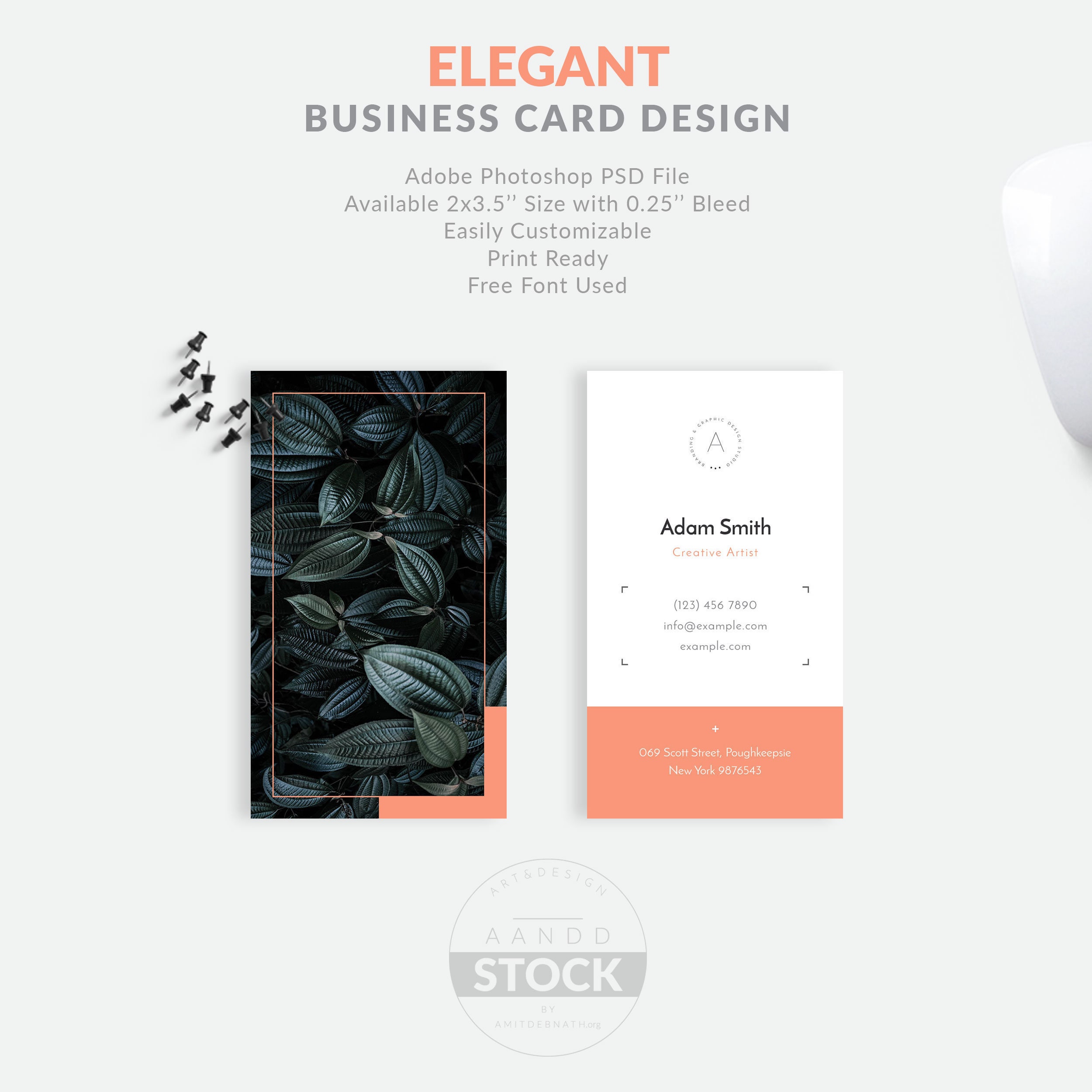
www.animalia-life.club
Template Business Card Photoshop
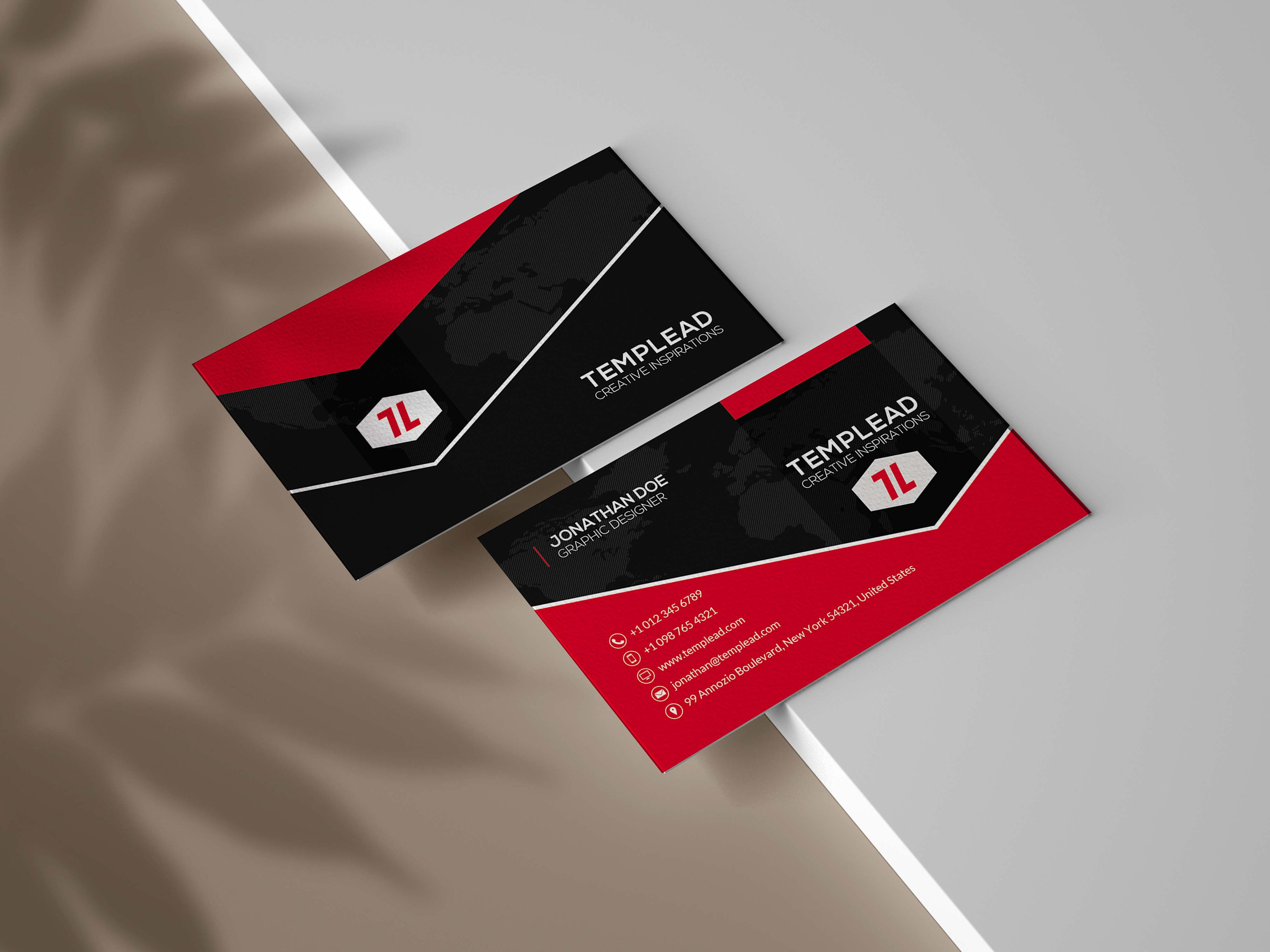
www.animalia-life.club
Business Card Template For Photoshop (11976) | Business Cards | Design
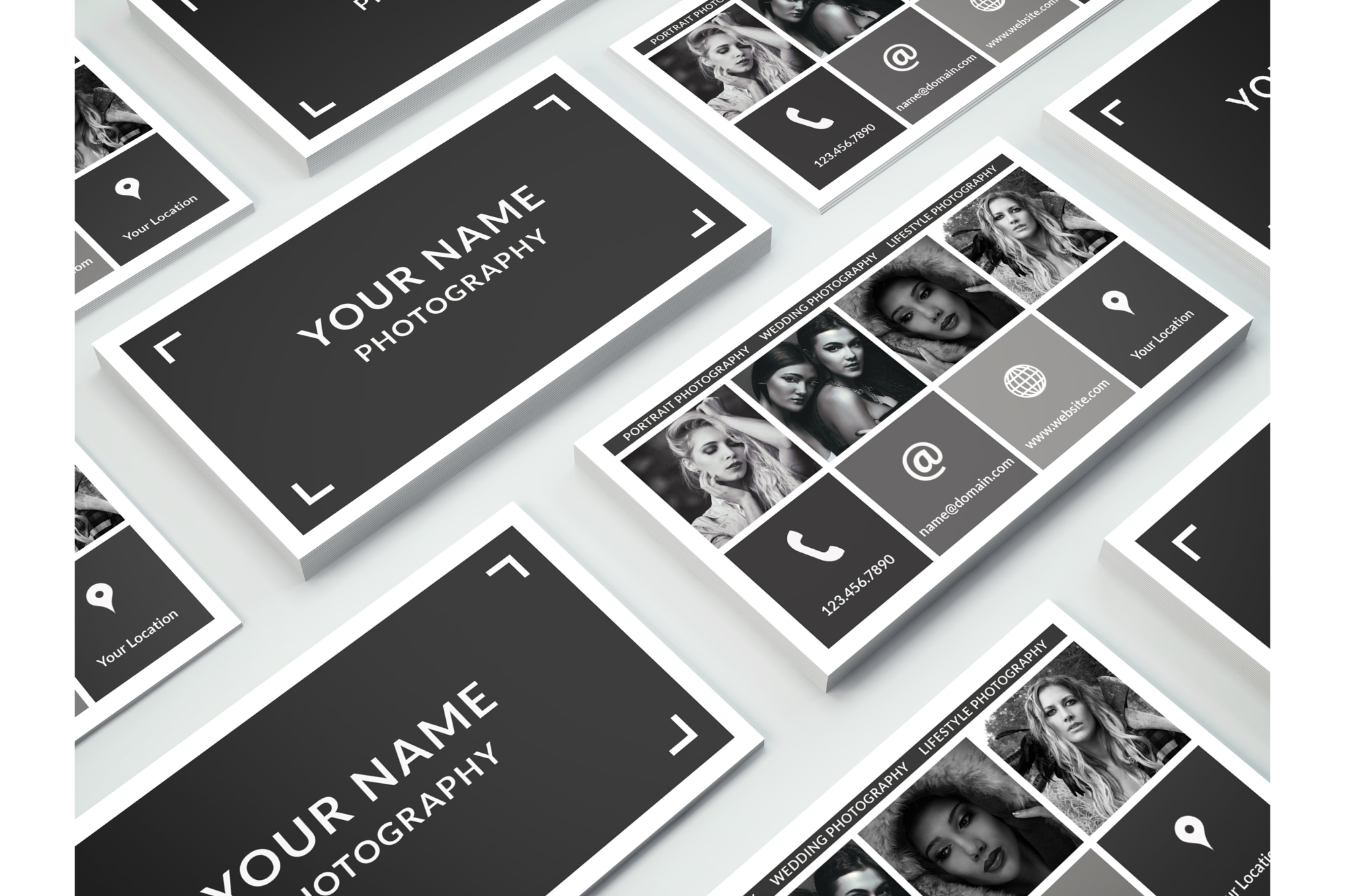
designbundles.net
Create Business Card Template Photoshop – Mightyprintingdeals.com
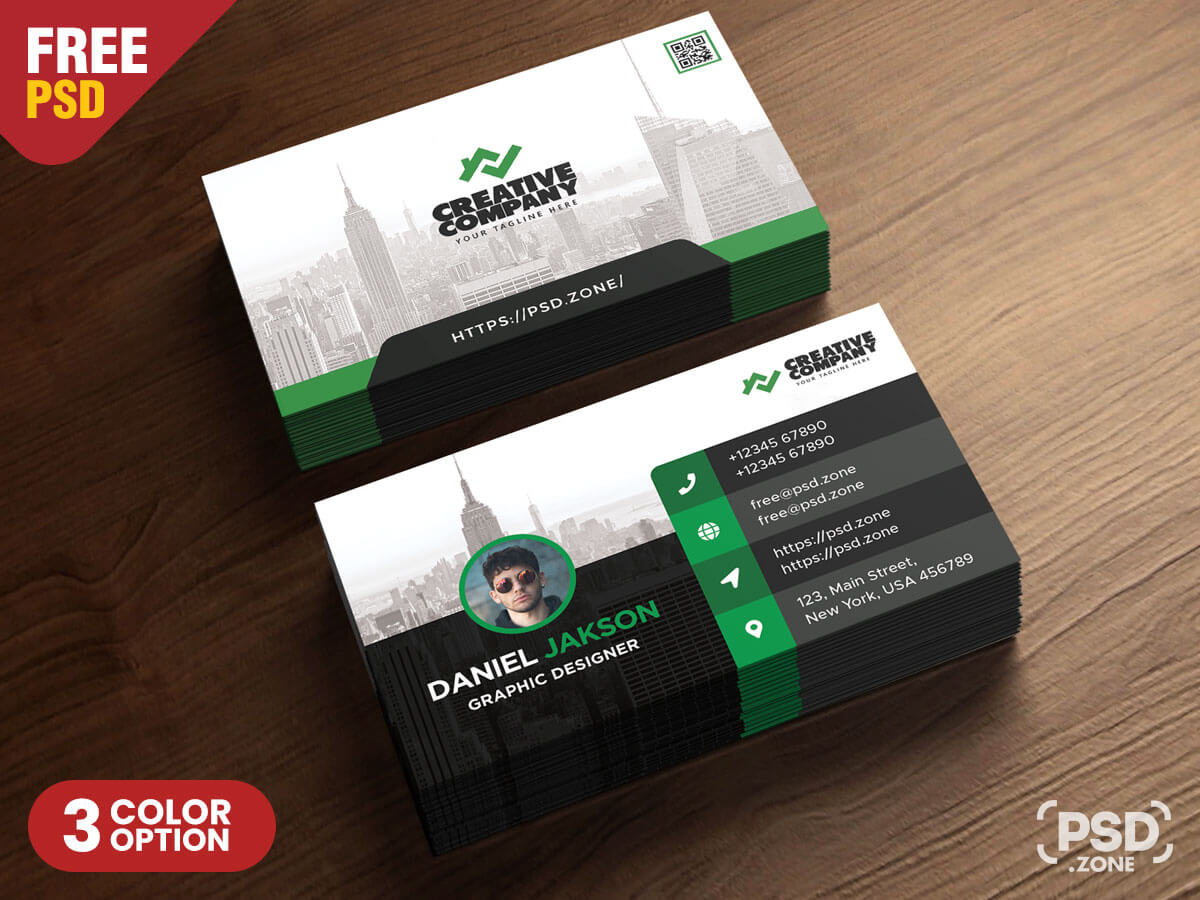
www.mightyprintingdeals.com
Create Business Card Template Photoshop
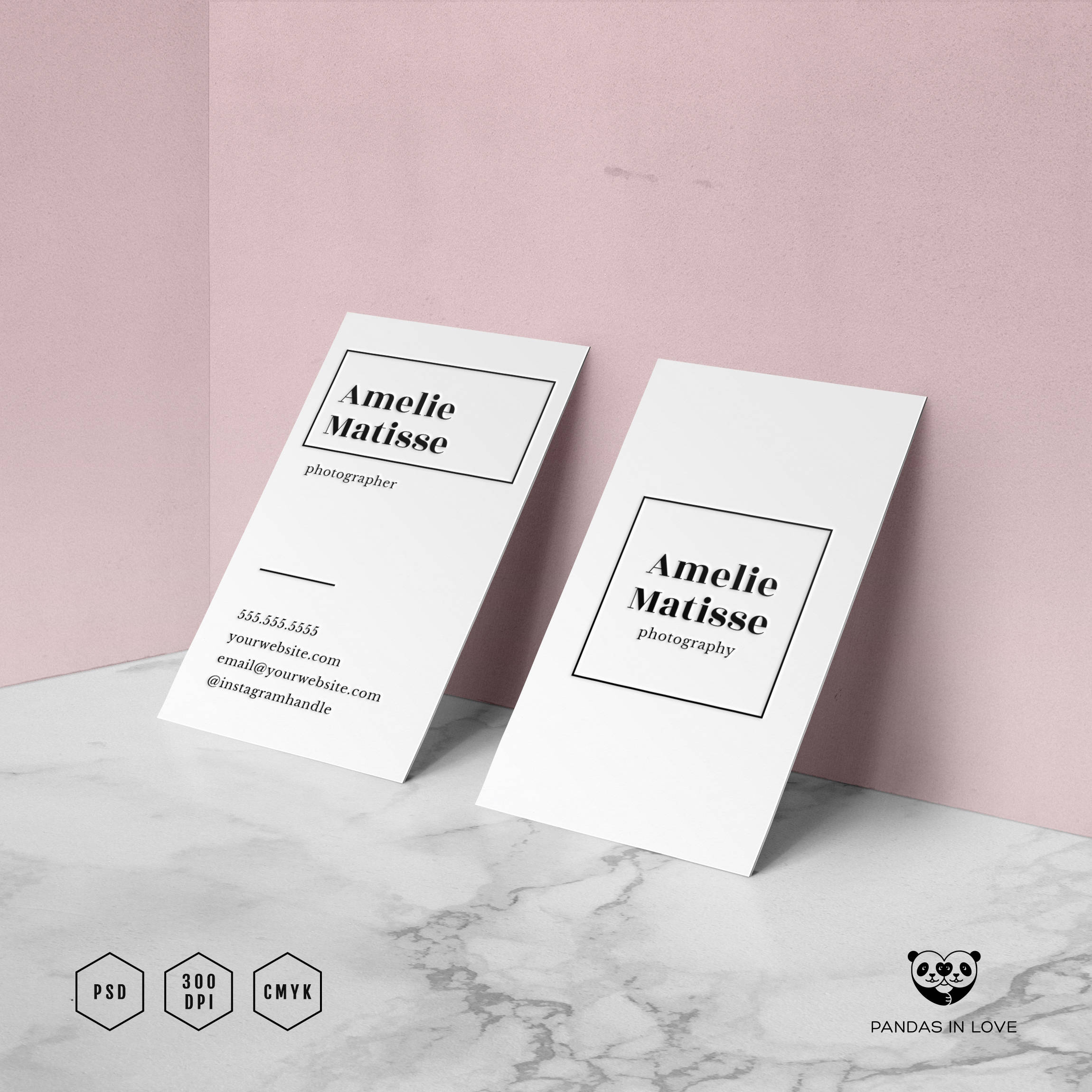
www.animalia-life.club
CREATIVE PHOTOSHOP BUSINESS CARD TEMPLATE | MasterBundles
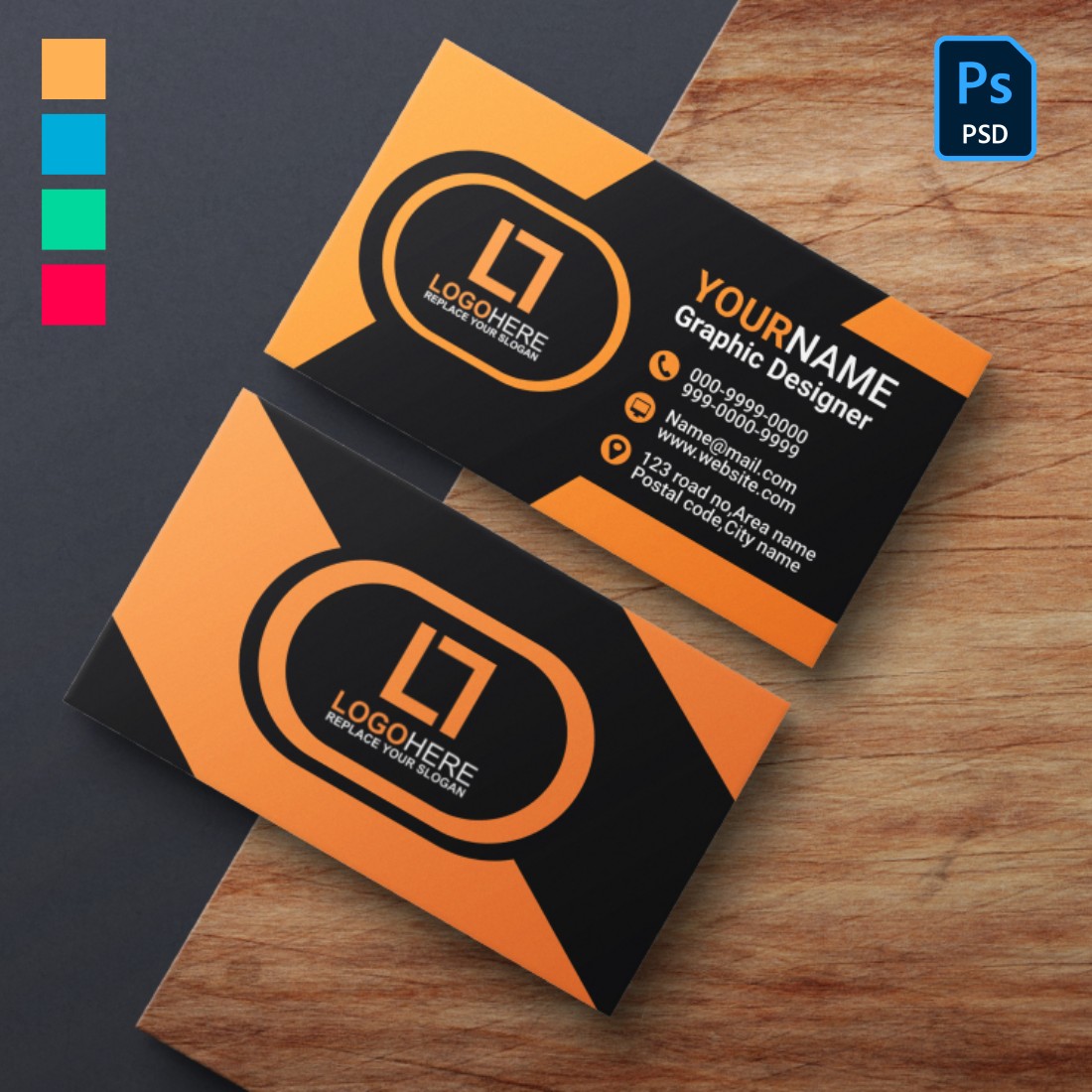
masterbundles.com
Photoshop Template For Business Card

old.sermitsiaq.ag
Create Business Card Template Photoshop – PARAHYENA
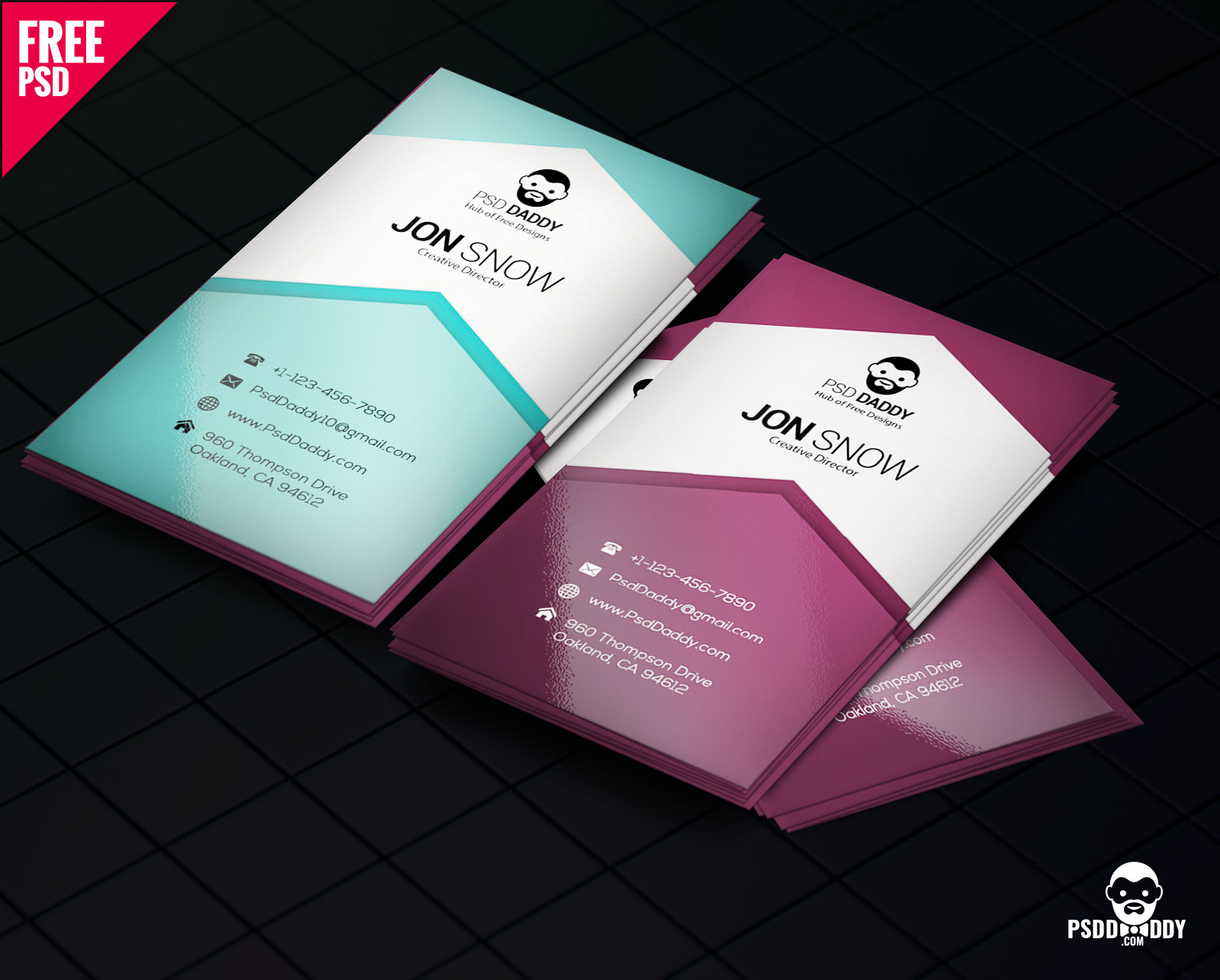
www.parahyena.com
Create Business Card Template Photoshop – PARAHYENA
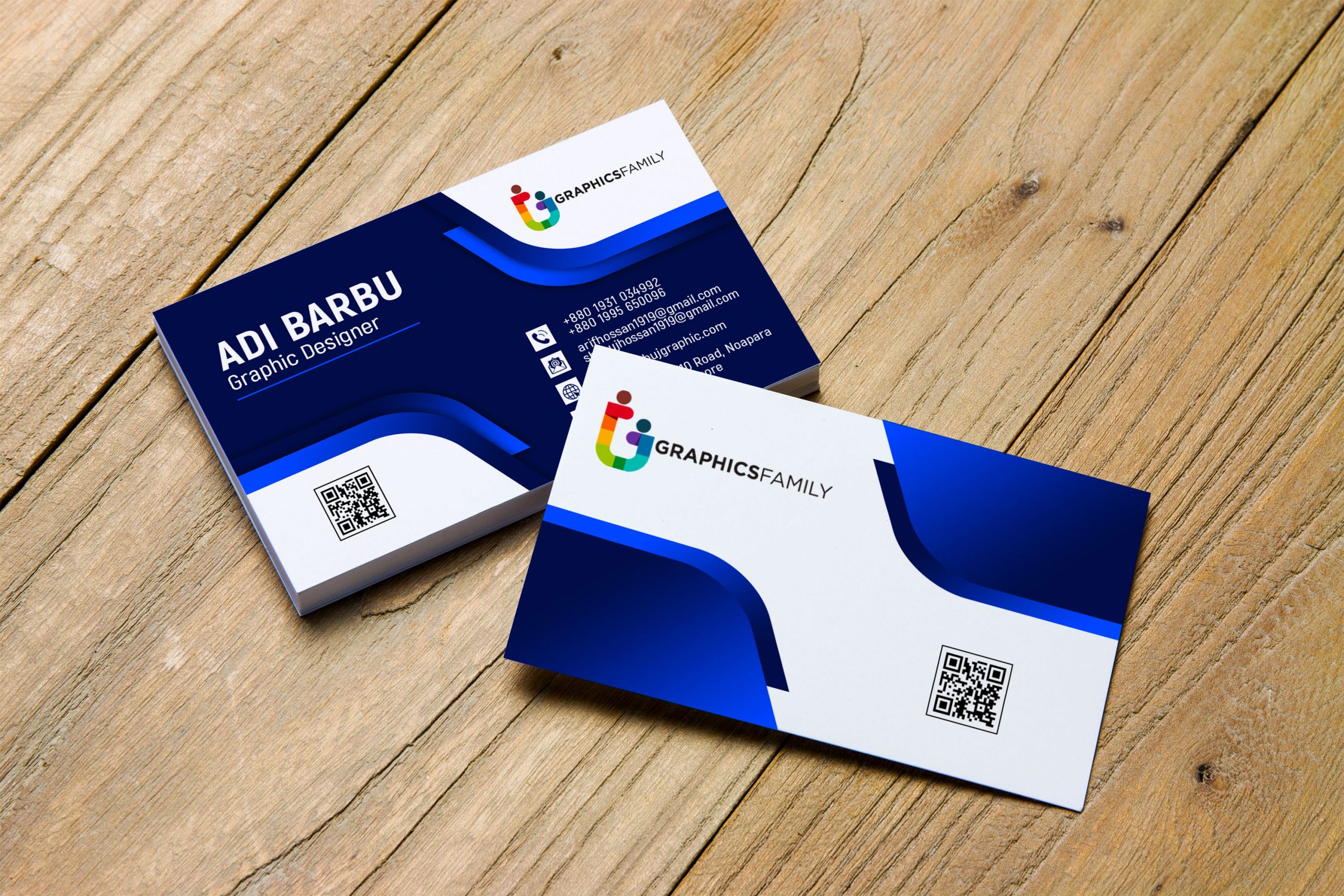
www.parahyena.com
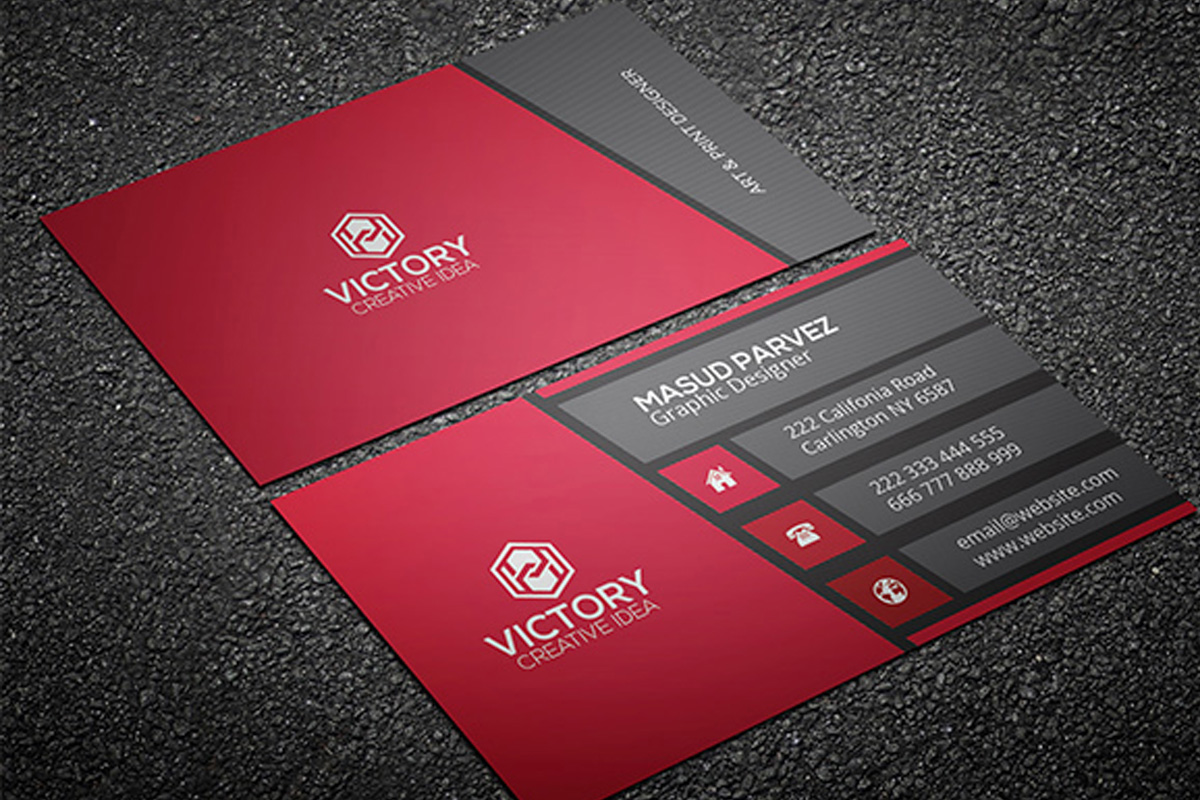
Business Card Template Psd Free Download
old.sermitsiaq.ag
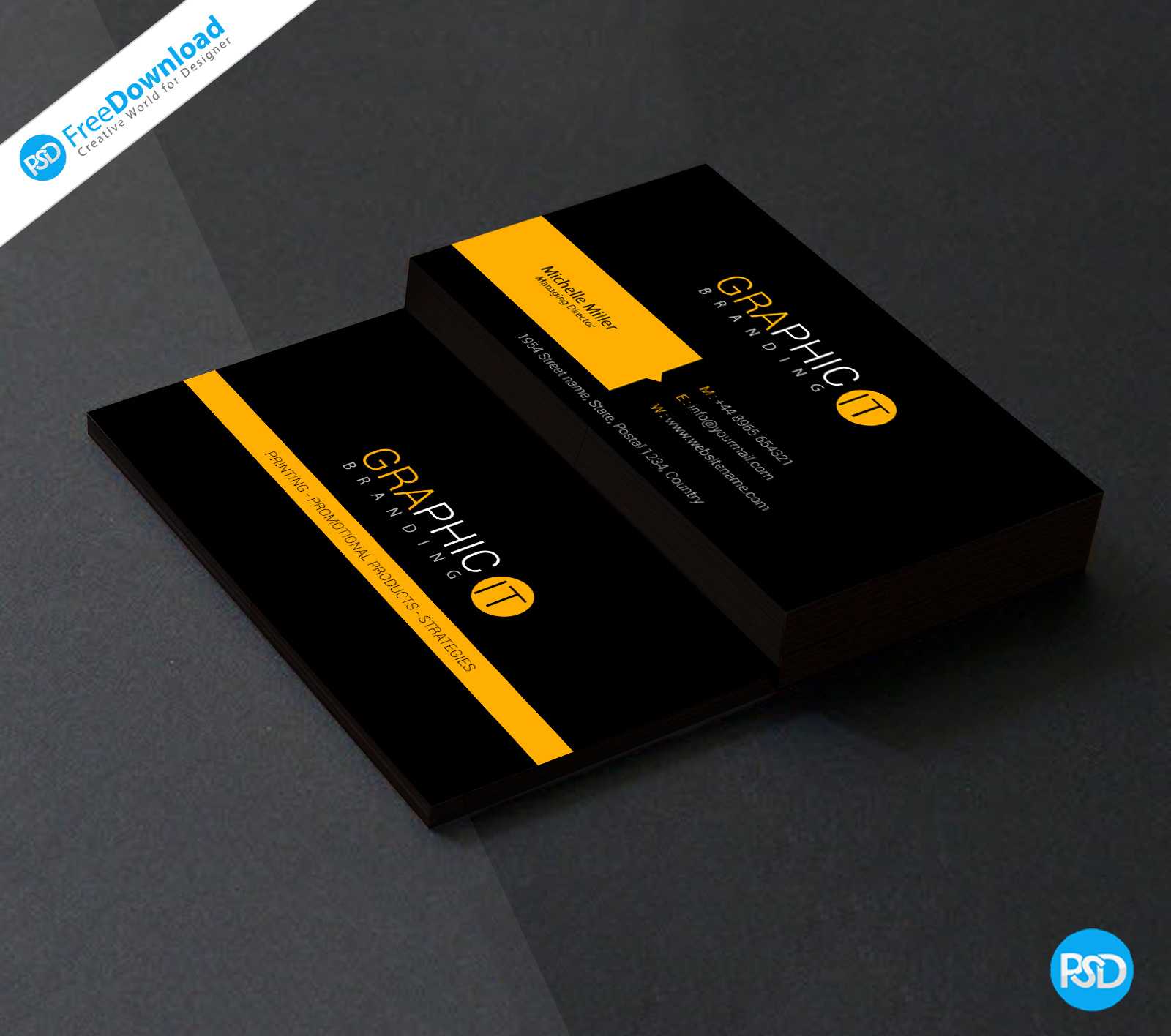
150+ Free Business Card Psd Templates In Create Business Card Template
sample.gelorailmu.com
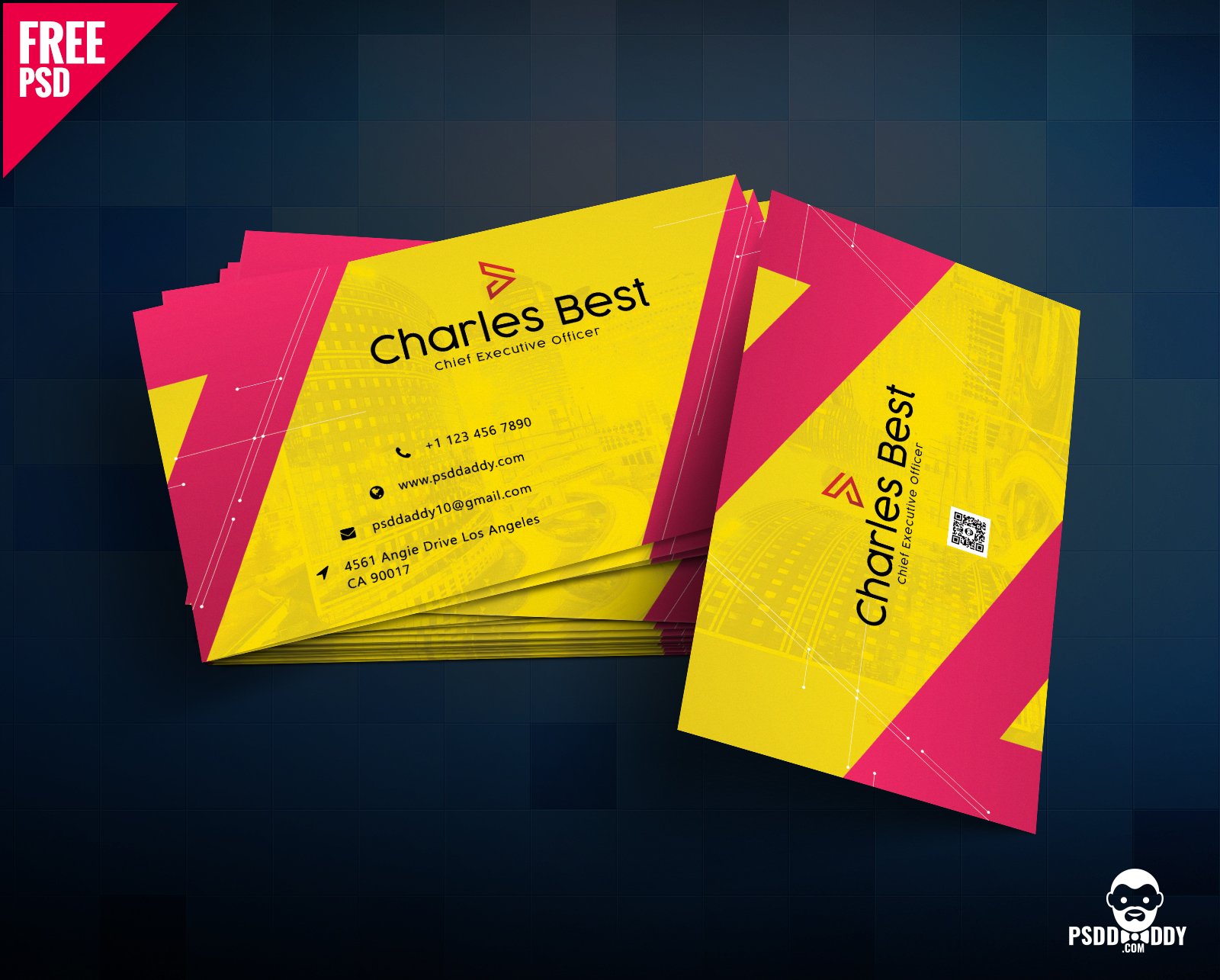
Create Business Card Template Photoshop – PARAHYENA
www.parahyena.com
Business Card Template For Photoshop

old.sermitsiaq.ag
photoshop template for business card. photoshop cs6 business card template. Photoshop cs6 business card template
Related posts of "Create Business Card Template Photoshop"
