Are you looking for a quick and easy way to organize information, brainstorm ideas, or create flashcards? Index cards are a timeless and versatile tool, and using Microsoft Word, you can create them digitally with ease. While Word doesn’t have a dedicated “index card” template in the traditional sense, you can leverage its powerful layout and formatting features to design your own. This post will guide you through the process of creating an index card template in Word, offering tips and tricks to streamline your workflow.
Creating Your Index Card Template in Word
The beauty of creating your own template is the flexibility it offers. You can customize the size, layout, and content to perfectly suit your needs. Here’s a step-by-step guide to get you started:
- Open a New Document: Start by opening a blank document in Microsoft Word.
- Set Page Size: The standard index card size is 3×5 inches. To adjust the page size, go to the “Layout” tab (or “Page Layout” tab in older versions of Word) and click on “Size.” Choose “More Paper Sizes…” at the bottom of the dropdown menu. In the “Page Setup” dialog box, enter 3 inches for the width and 5 inches for the height. Click “OK.” Word may warn you about the size being outside of the printer’s margins; you can usually ignore this if you’re creating a digital template and not immediately printing.
- Set Margins: Adjust the margins to your preference. Smaller margins will allow you to maximize the writing space on your index card. Go to the “Layout” tab (or “Page Layout” tab) and click on “Margins.” Choose “Custom Margins…” At a minimum, ensure the margins are suitable for your intended printing or digital use. You can experiment with 0.25-inch or 0.5-inch margins.
- Insert a Table (Optional but Recommended): Inserting a 1×1 table provides structure and makes it easier to align text. Go to the “Insert” tab and click “Table.” Select a 1×1 table. Right-click on the table and select “Table Properties.” Go to the “Row” tab and specify the height as 5 inches and the “Row height is” set to “Exactly”. Then, go to the “Cell” tab. Click “Options…” and set the cell margins to 0 on all sides. This ensures text fills the entire available space.
- Add Text Boxes (Optional): If you want more flexible text placement, you can use text boxes. Insert a text box by going to the “Insert” tab and clicking “Text Box.” Draw a text box inside the card area. Remove the outline and fill of the text box by right-clicking on it, selecting “Format Shape,” and setting both the “Line” and “Fill” to “No Line” and “No Fill,” respectively. This makes the text box blend seamlessly into the background.
- Add Headings and Lines: You can add headings for topics or dates. Use the “Insert” tab to add shapes like lines for writing on. Experiment with different fonts, sizes, and colors to create a visually appealing and functional template.
- Add Formatting: Format the text to your liking. Choose a font that is easy to read and use consistent formatting throughout the template. You can use bolding, italics, and underlining to emphasize important information.
- Save as a Template: Once you’re satisfied with your design, save the document as a Word template (.dotx). Go to “File” -> “Save As.” In the “Save as type” dropdown menu, select “Word Template (*.dotx).” This allows you to reuse the template easily without accidentally overwriting the original.
Customizing Your Index Card Template
Here are some ideas for customizing your index card template to make it more useful:
Adding Fields for Specific Information
Consider adding fields for specific information you often use. For example, if you’re creating flashcards for vocabulary, you might include fields for:
- Word
- Definition
- Example Sentence
- Image (you can insert placeholders for images)
Creating Different Templates for Different Purposes
You can create different templates for different purposes, such as:
- Brainstorming: A template with more blank space for free-form writing.
- Note-Taking: A template with lines for organized notes.
- Flashcards: A template with pre-defined fields for terms and definitions.
- Project Management: A template to quickly jot down tasks, deadlines, and responsible parties.
Using Color and Visual Cues
Color can be a powerful tool for organization. Use different colors for different categories of information. You can also use visual cues, such as icons or symbols, to help you quickly identify important information.
By following these steps, you can create custom index card templates in Word that are tailored to your specific needs. Experiment with different layouts and formatting options to find what works best for you. Happy organizing!
If you are searching about 4X6 Index Card Template you’ve visit to the right place. We have 22 Pics about 4X6 Index Card Template like Microsoft Word Index Card Template 4X6 – Cards Design Templates, 74 Creative 5X7 Index Card Template Word With Stunning Design for 5X7 and also Index Card Word Template. Here it is:
4X6 Index Card Template
dl-uk.apowersoft.com
Free Printable Index / Flash Card Templates [Word] Editable
![Free Printable Index / Flash Card Templates [Word] Editable](https://www.typecalendar.com/wp-content/uploads/2023/08/Index-Card-1536x864.jpg)
www.typecalendar.com
Index Card Template For Word – Professional Template
template.pejuang.net
Word Template For 21×21 Index Cards – CC Alcala Norte
www.ccalcalanorte.com
Word Template For 3X5 Index Cards – Creative Inspirational Template
habib.gelorailmu.com
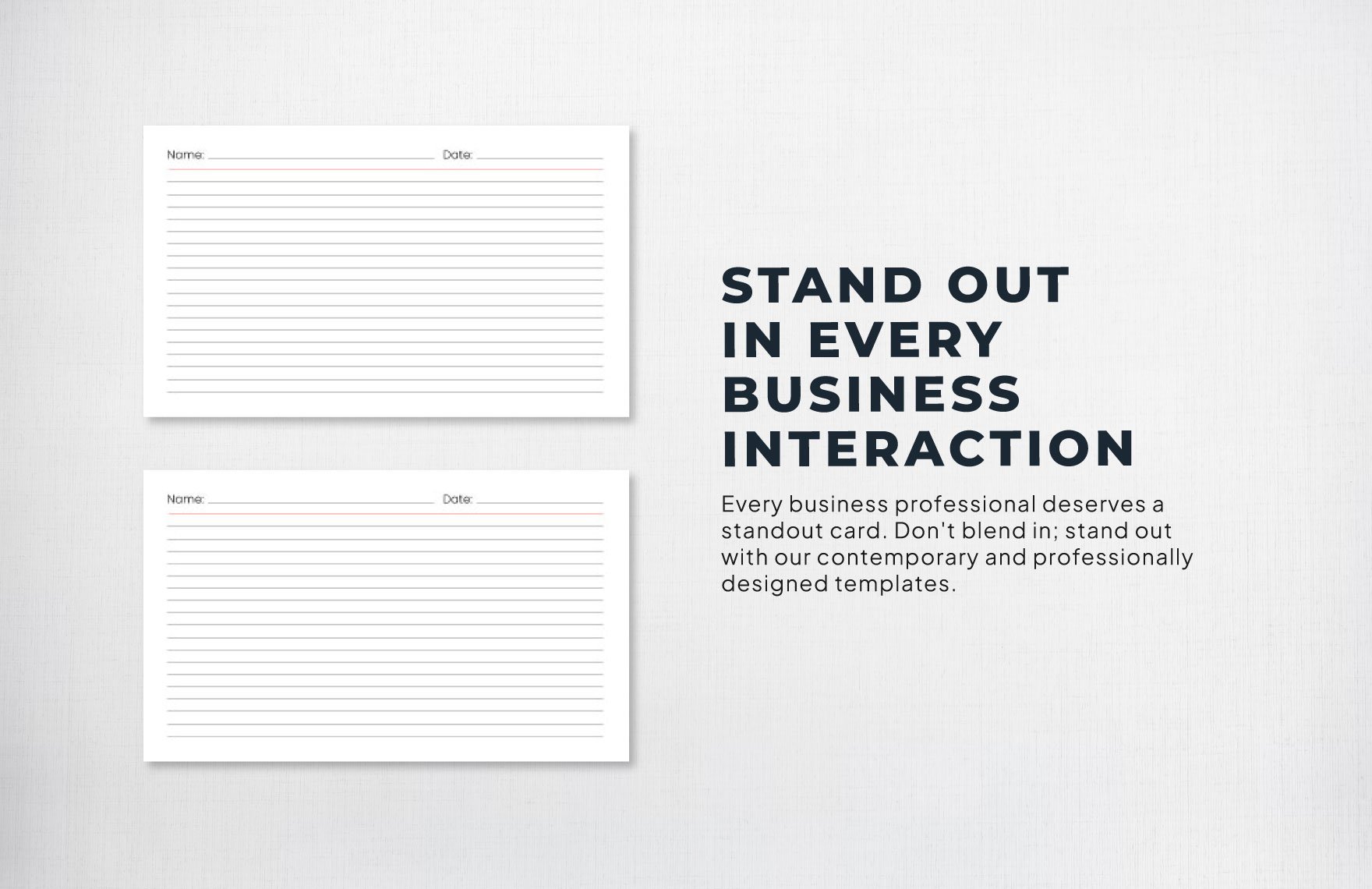
Index Card Template In Word, Illustrator, PDF, Google Docs – Download
www.template.net
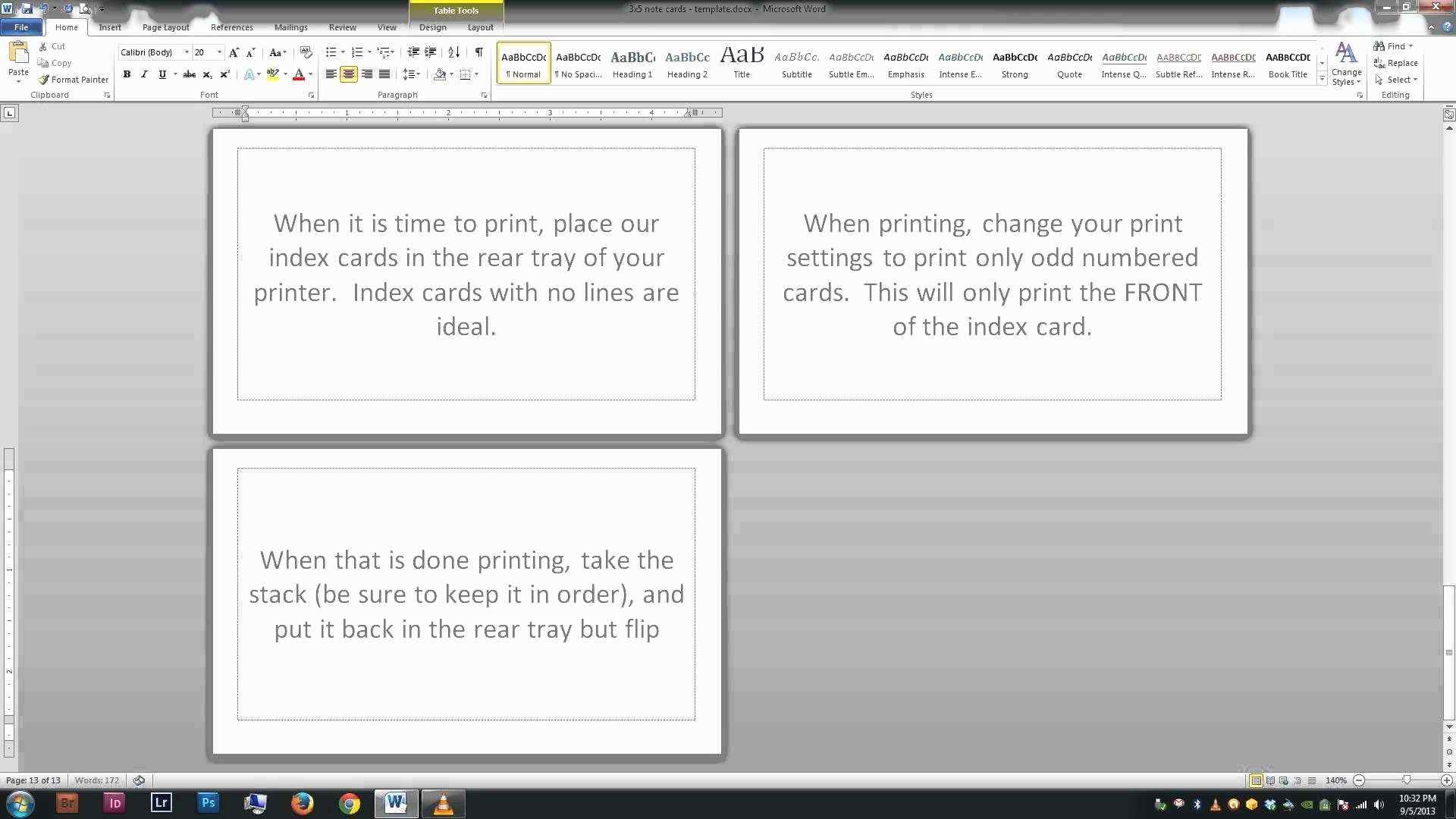
Avery Index Card Template For Word – Cards Design Templates
legaldbol.com
Free Printable Printable Index Card Template / 11 Customize Our Free

www.midi-box.com
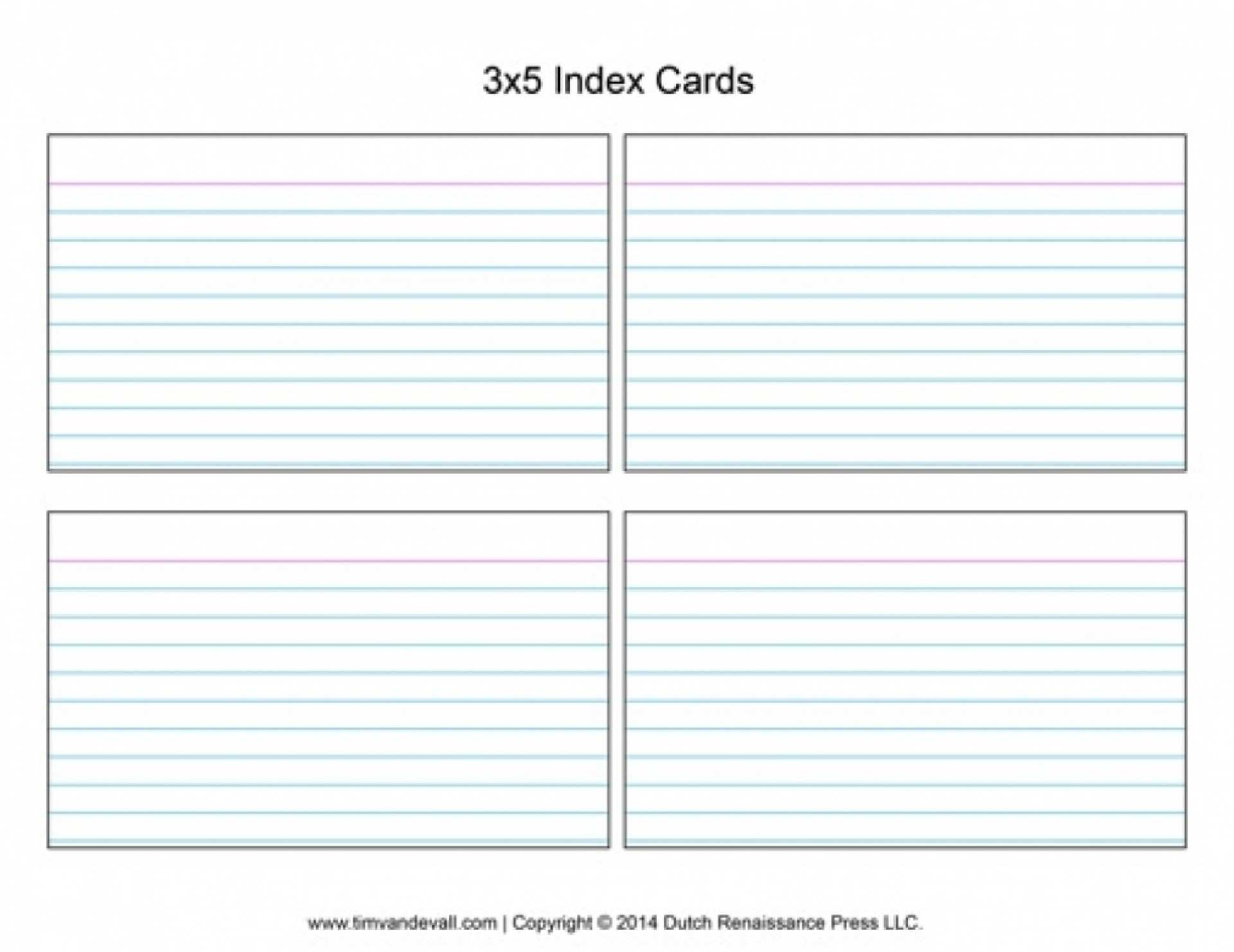
74 Creative 5X7 Index Card Template Word With Stunning Design For 5X7
legaldbol.com
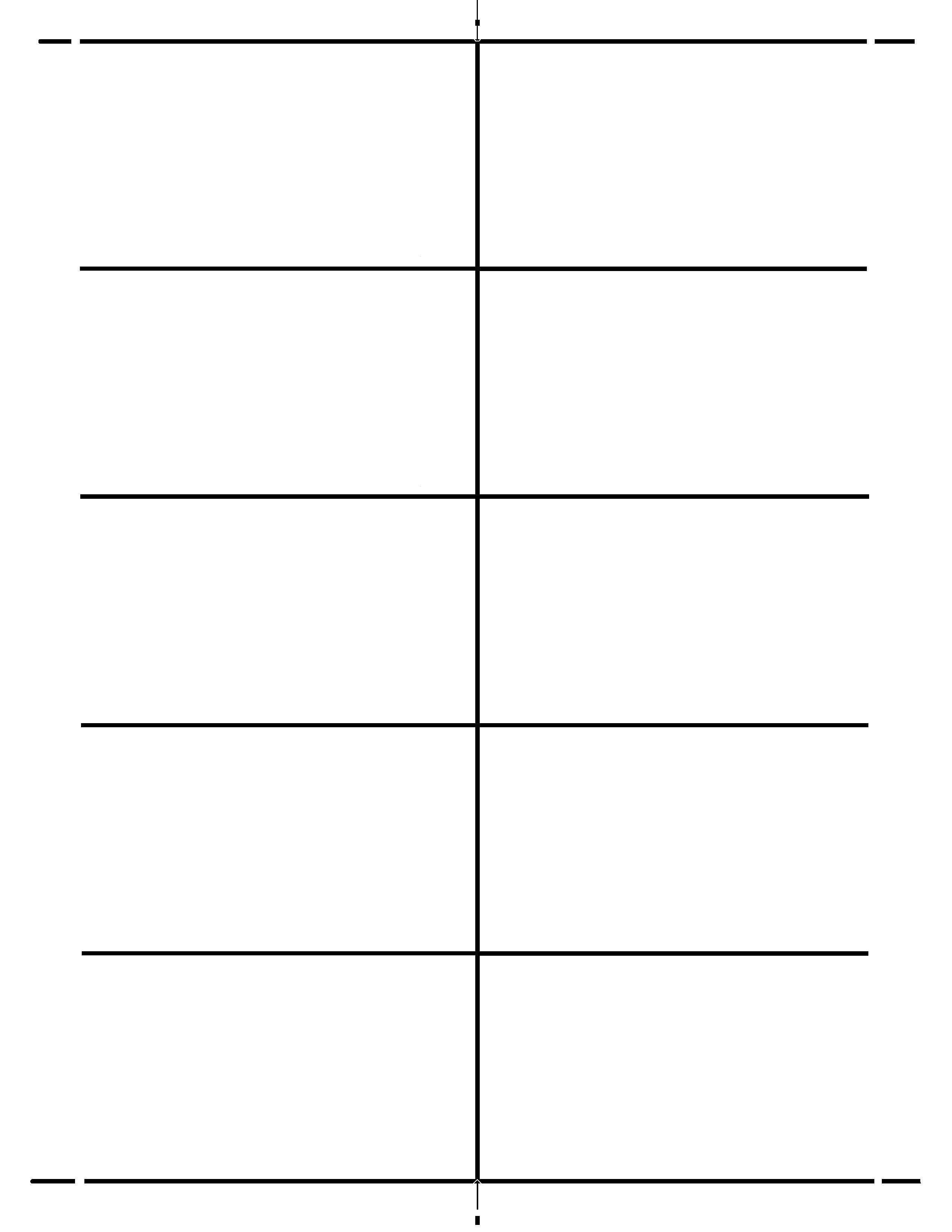
44 Free 3 X 5 Index Card Template Word In Photoshop With 3 X 5 Index
legaldbol.com
Index Card Word Template
old.sermitsiaq.ag
Free Printable Index / Flash Card Templates [Word] Editable
![Free Printable Index / Flash Card Templates [Word] Editable](https://www.typecalendar.com/wp-content/uploads/2023/08/Word-Download-Index-Card.jpg)
www.typecalendar.com
Microsoft Word Index Card Template 4X6 – Cards Design Templates
legaldbol.com
Free Printable Index / Flash Card Templates [Word] Editable
![Free Printable Index / Flash Card Templates [Word] Editable](https://www.typecalendar.com/wp-content/uploads/2023/08/Word-Example-Index-Card.jpg?gid=804)
www.typecalendar.com
Microsoft Word Index Card Template 4X6 – Cards Design Templates
legaldbol.com
3×5 Index Card Template Microsoft Word

templates.esad.edu.br
85 Free Printable Index Card Template Word 2013 Formating For Index
legaldbol.com
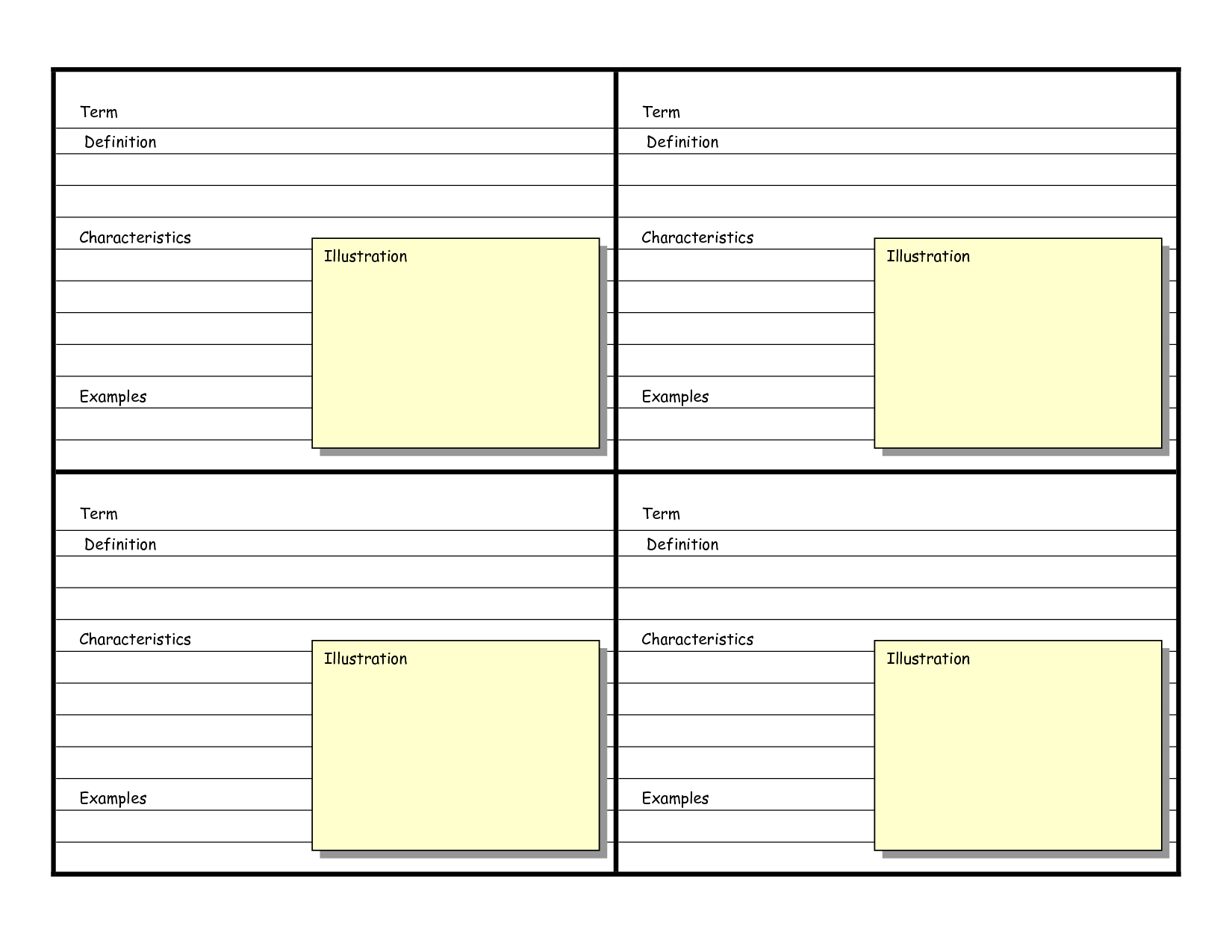
009 Template Ideas Index Card Word Impressive 2010 3X5 Throughout
sample.gelorailmu.com
Free Printable Index / Flash Card Templates [Word] Editable
![Free Printable Index / Flash Card Templates [Word] Editable](https://www.typecalendar.com/wp-content/uploads/2023/08/Sample-Word-Index-Card.jpg)
www.typecalendar.com
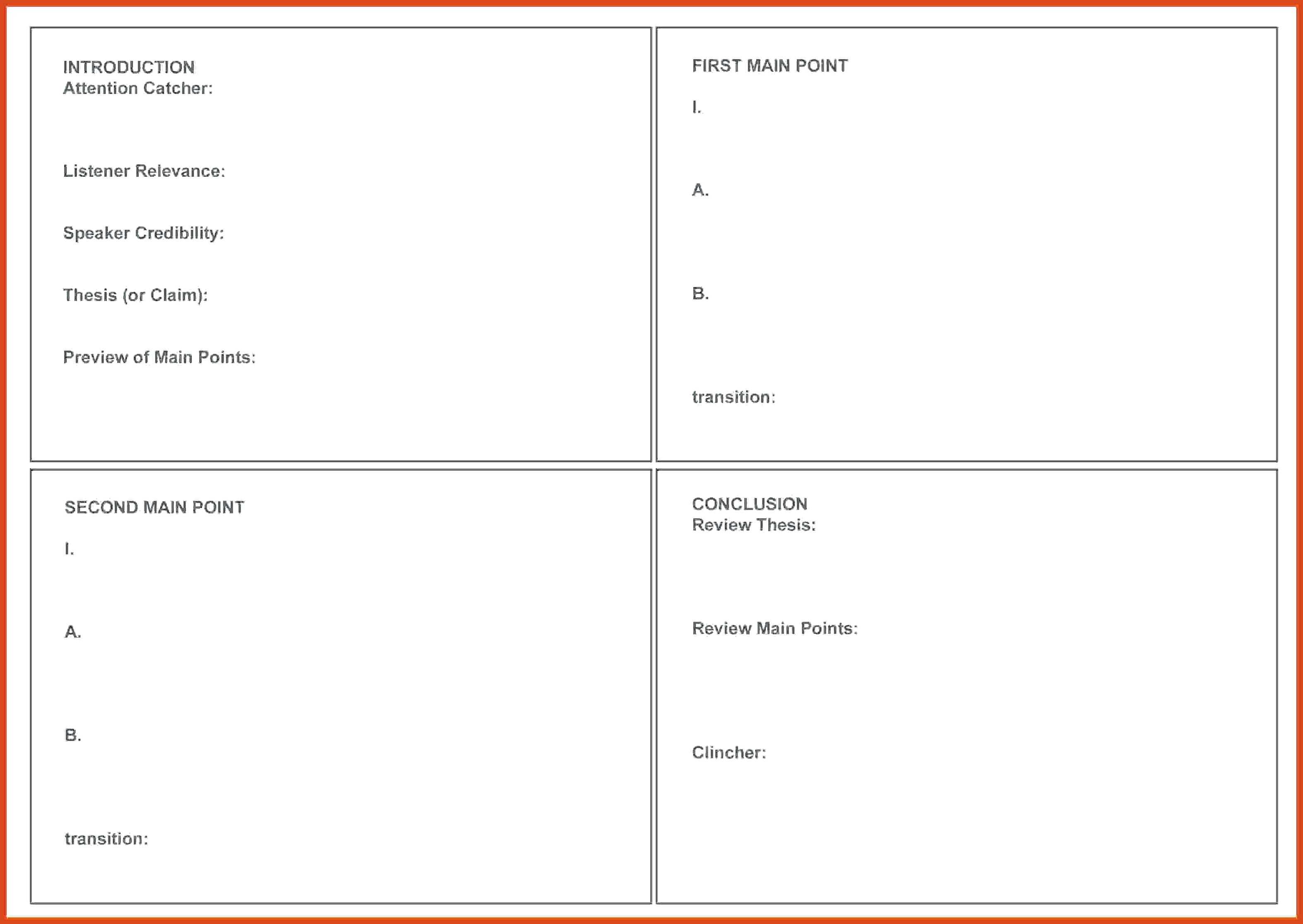
14 Standard Blank Index Card Template Word Templates For Blank Index
legaldbol.com
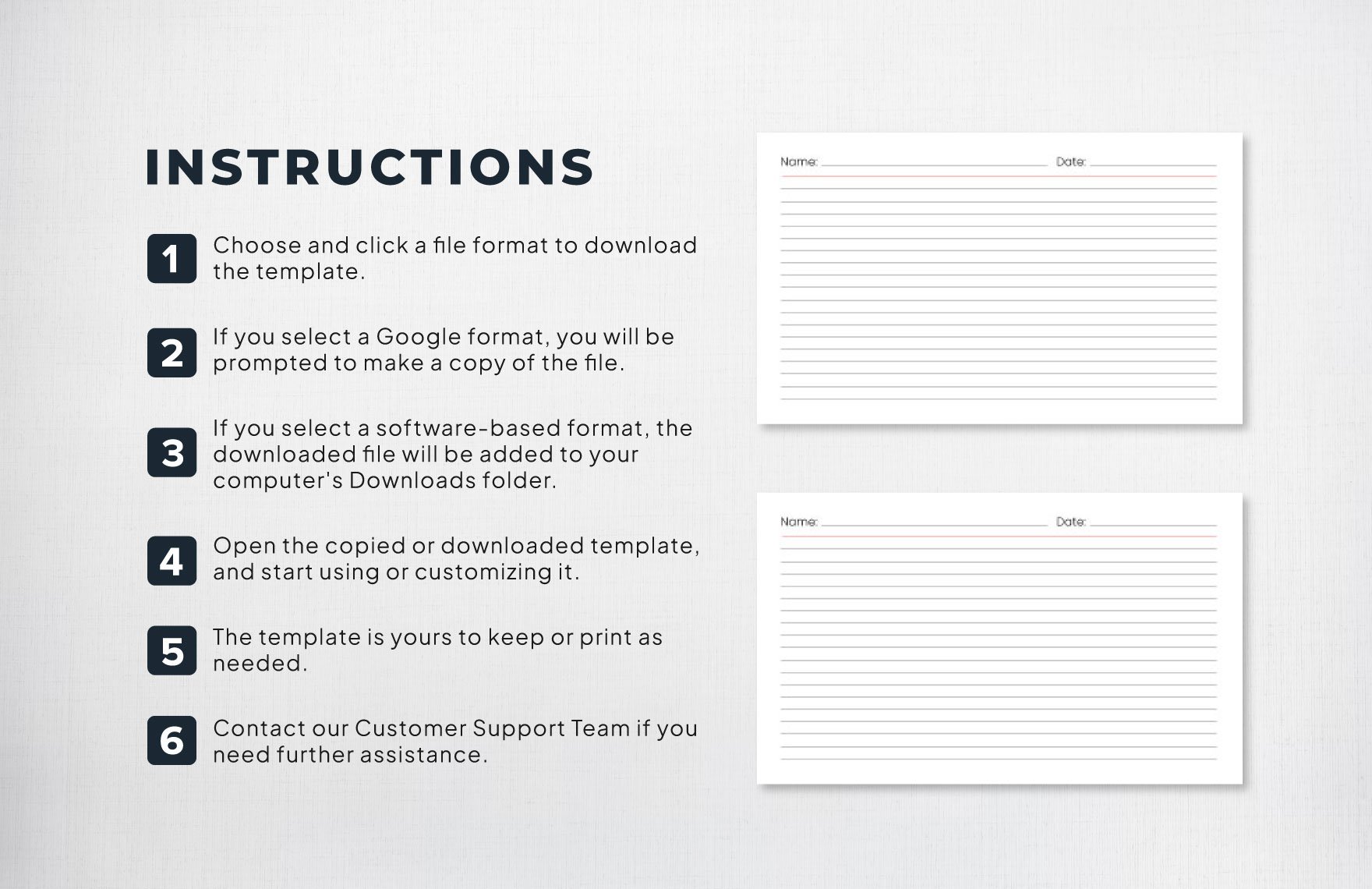
Index Card Template In Word, Illustrator, PDF, Google Docs – Download
www.template.net
4×6 Index Card Template Word – Search Shopping – Worksheets Library

worksheets.clipart-library.com
index card template in word, illustrator, pdf, google docs. 14 standard blank index card template word templates for blank index …. 009 template ideas index card word impressive 2010 3×5 throughout
Related posts of "Index Card Template For Word"
